SafeZone
by Infratech
Quick Setup Guide
You need an internet connection on your phone to sync holidays from the cloud. Once everything is set up, the device runs on its own — no internet needed.
Open the SafeZone app
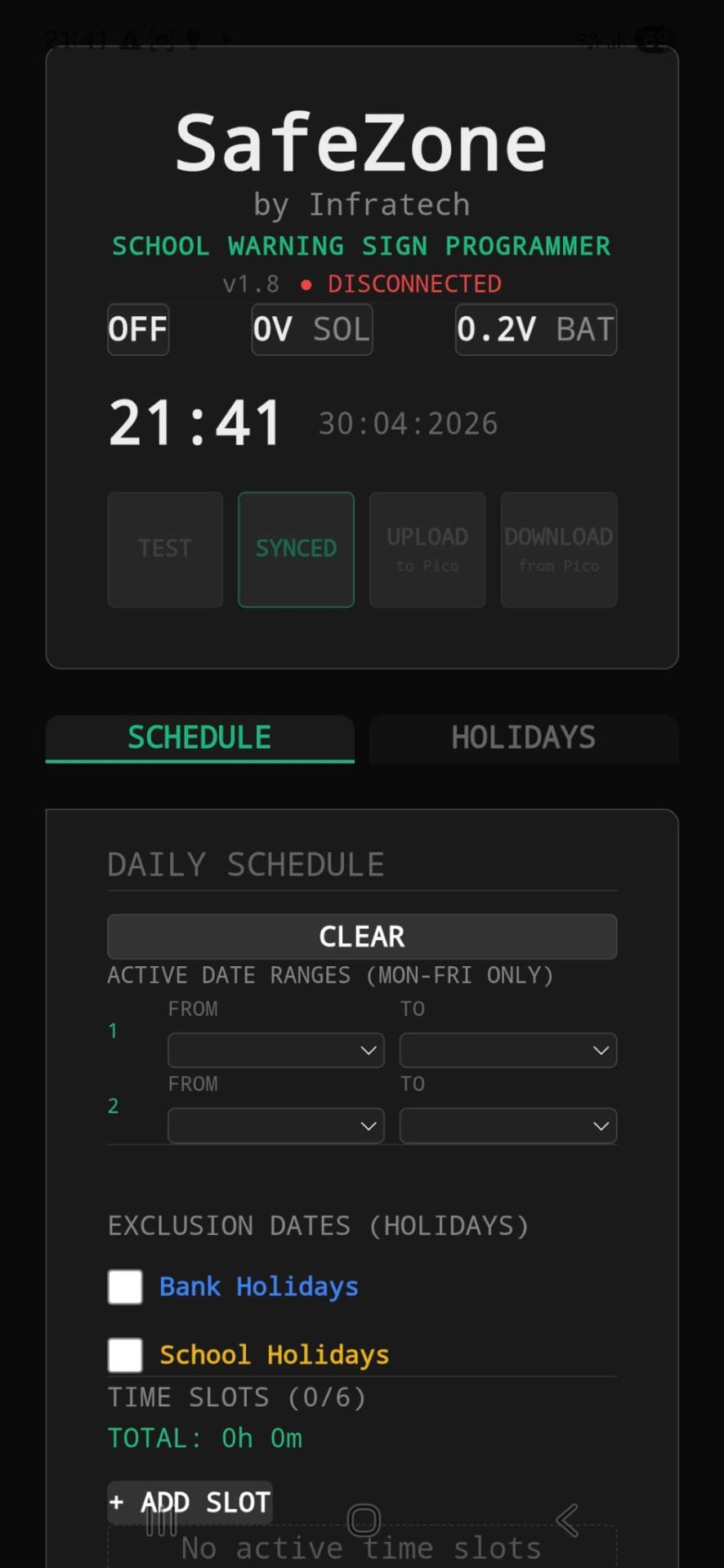
Make sure your phone has an internet connection (mobile data or WiFi). Open the SafeZone app. You should see the status bar showing DISCONNECTED in red — this is normal before connecting to the device.
Sync your holidays
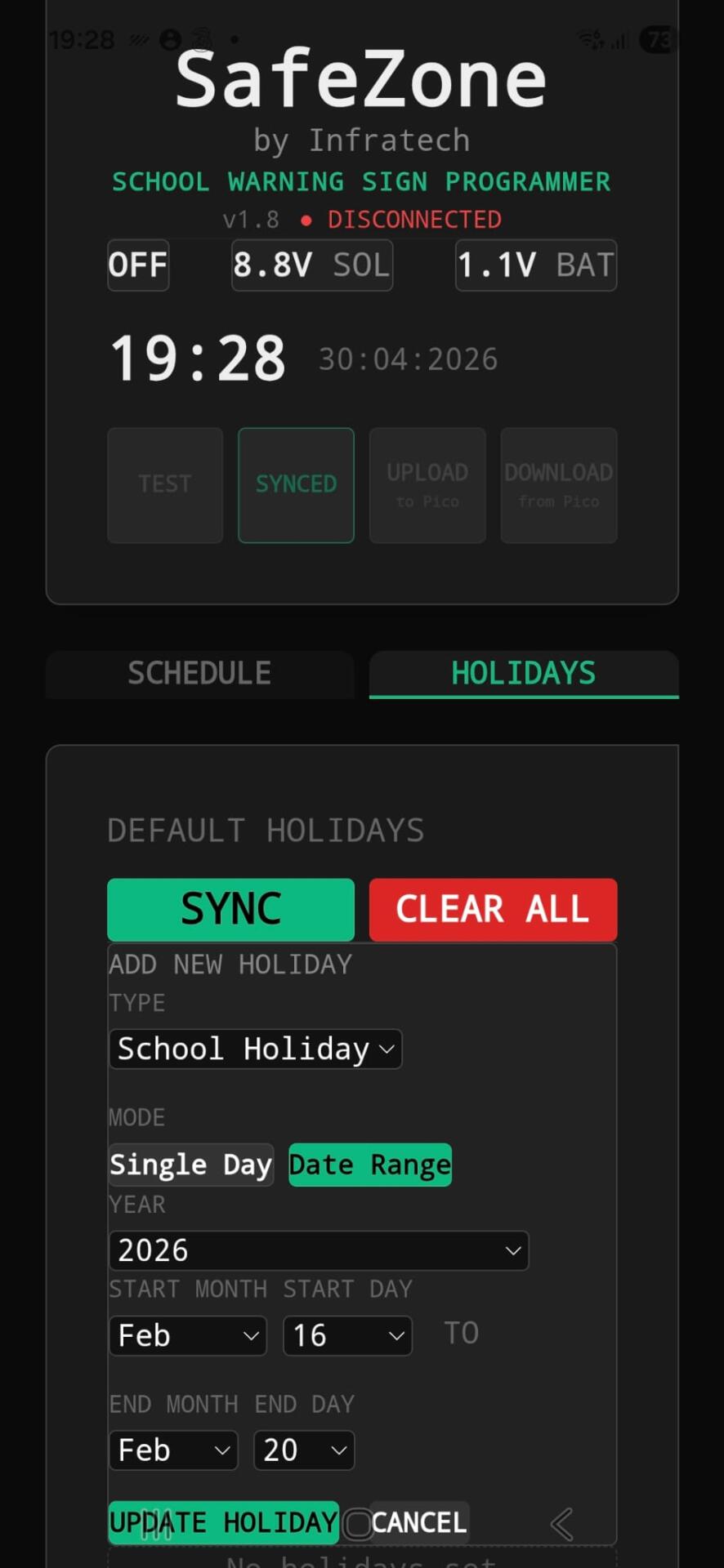
Tap the HOLIDAYS tab, then tap SYNC. This downloads all bank holidays and school holidays from the cloud while you have internet. You only need to do this once per year.
Choose which years to import
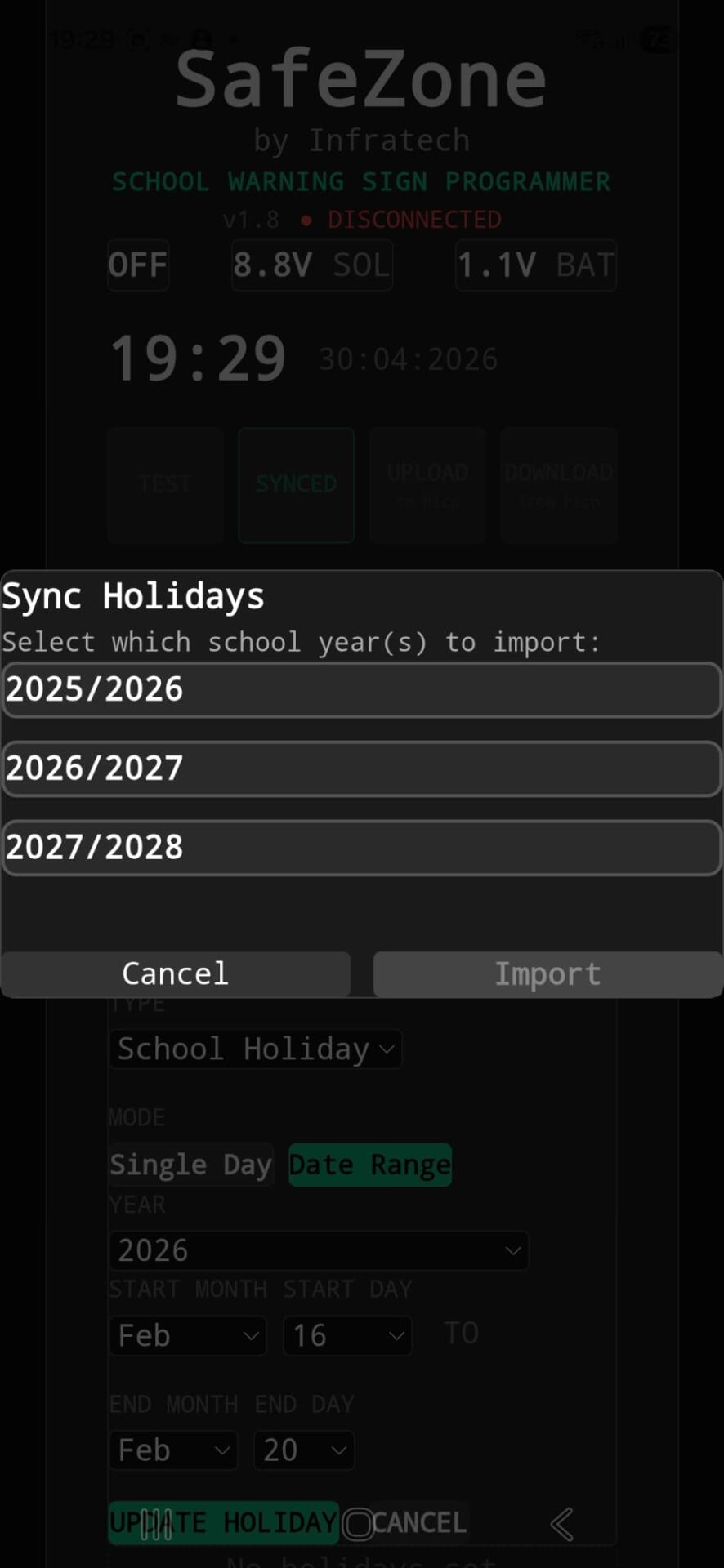
Select the school year(s) you want — usually the current year and next year — then tap Import. The holidays will be saved to your app.
Connect your phone to the device WiFi
Press the WiFi button on the SafeZone device. The device creates a WiFi hotspot called PicoClock. Go to your phone's WiFi settings and connect to it. Password: infratechsws
Confirm the app shows CONNECTED
Switch back to the SafeZone app. The status bar should now show CONNECTED in green, and the device's clock time will appear. If it still shows DISCONNECTED, check your phone is connected to the PicoClock WiFi.
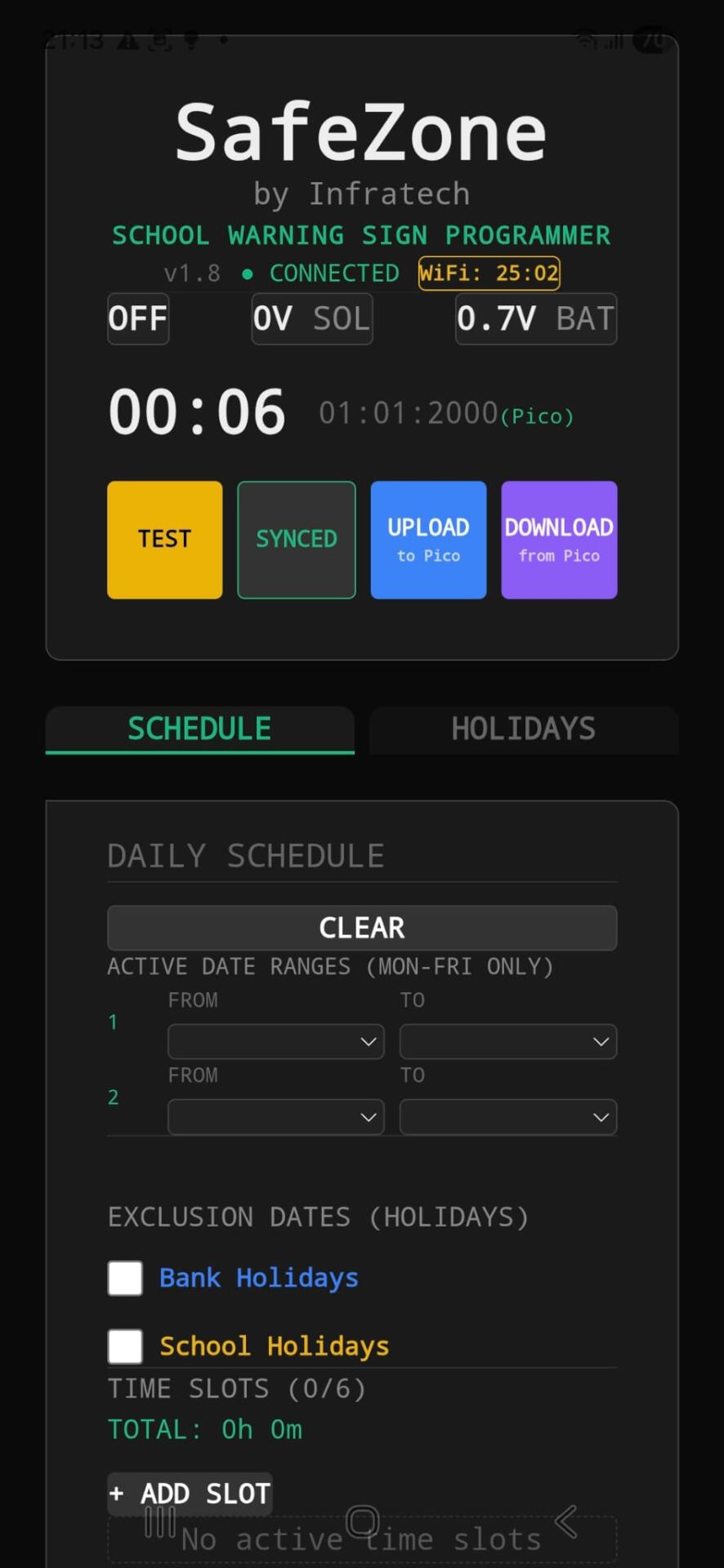
Set your active date ranges
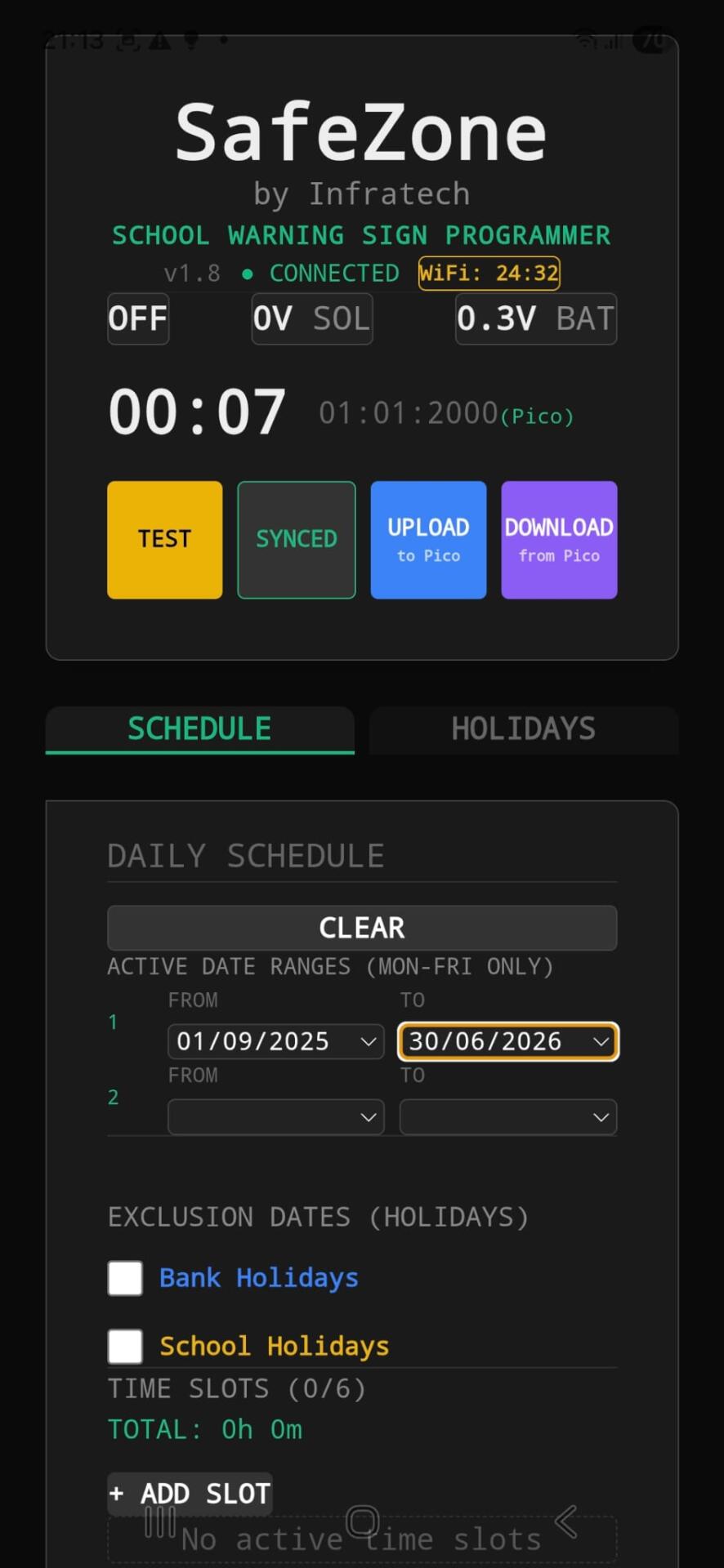
On the SCHEDULE tab, set the FROM and TO dates for when the sign should operate — typically the school year start and end dates. You can add a second date range if needed.
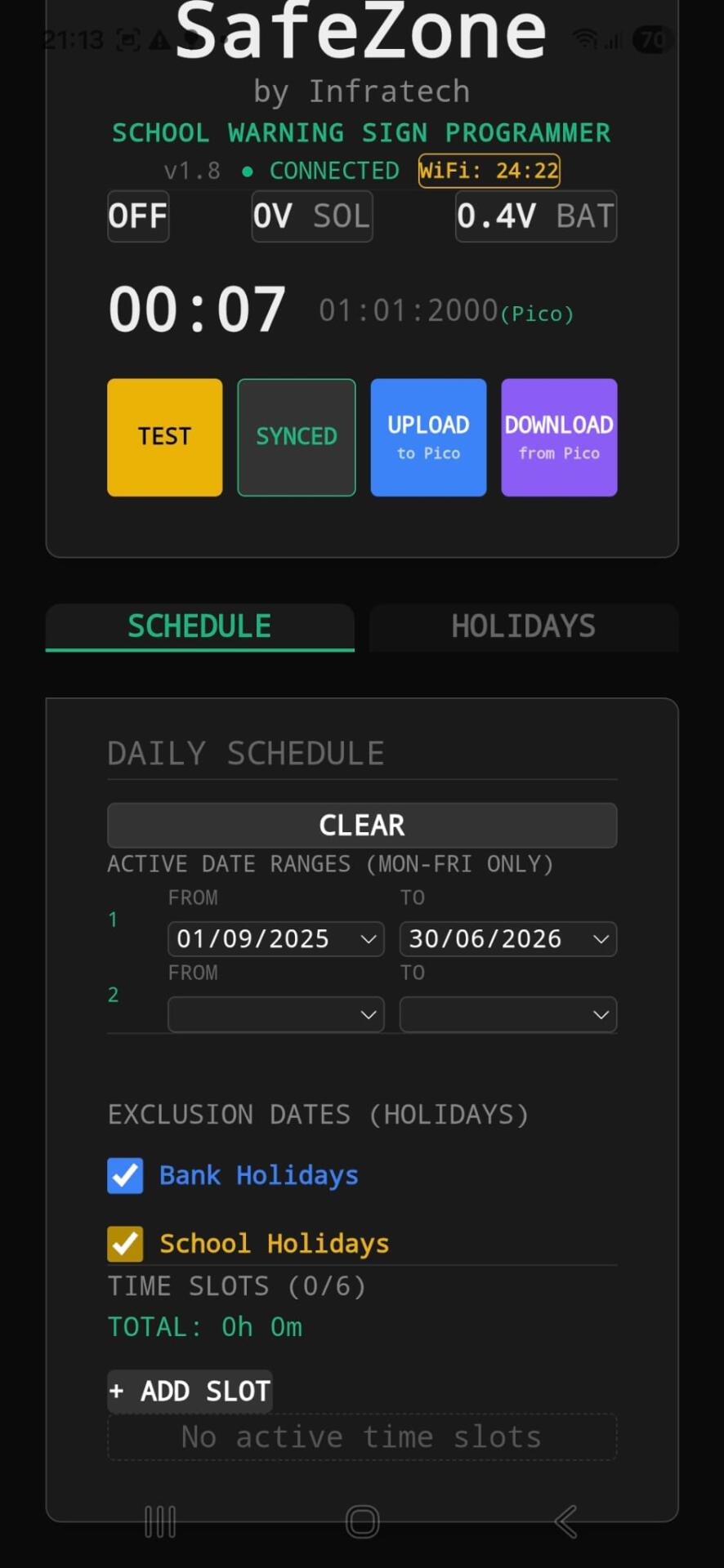
Turn on holiday exclusions
Tick both Bank Holidays and School Holidays. The sign will automatically stay off on those days, even if they fall within your active date range.
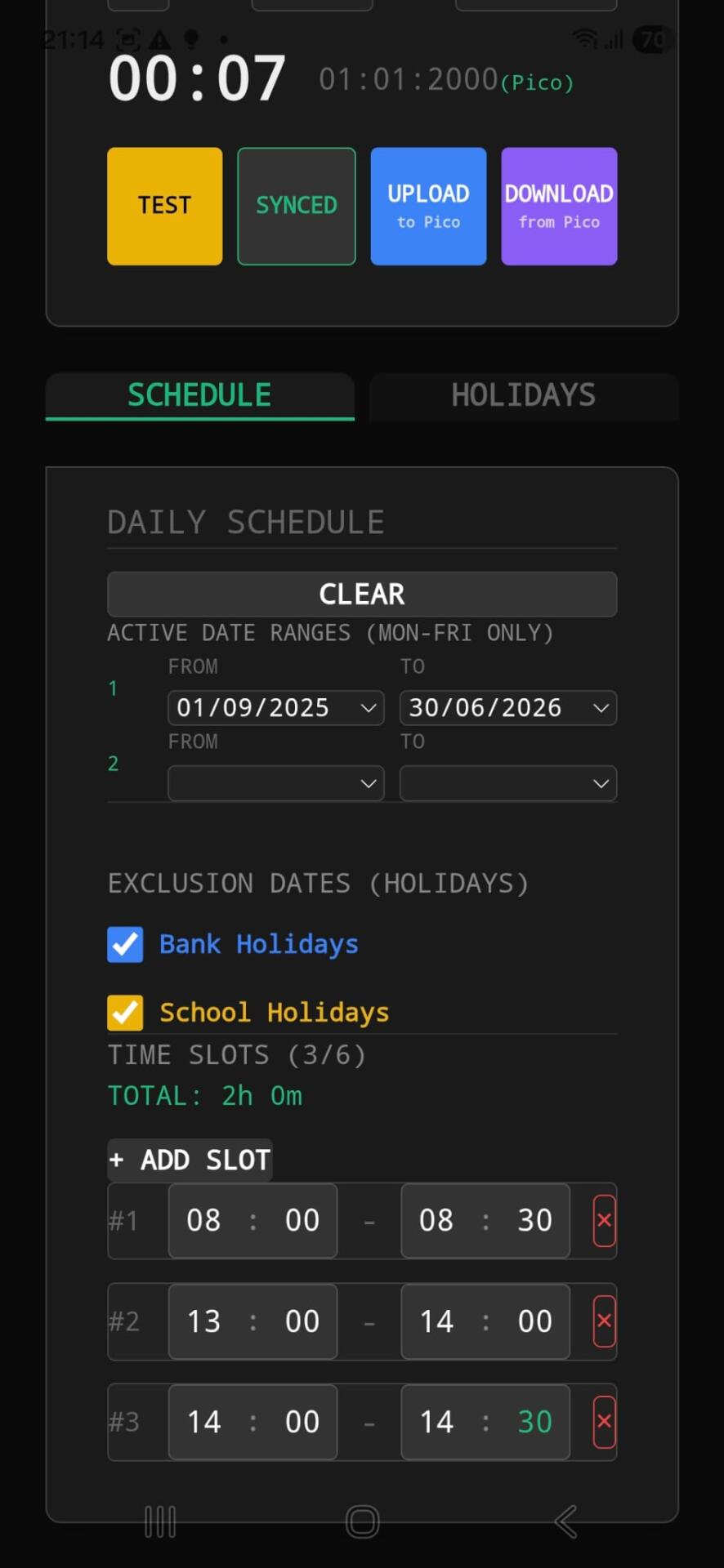
Add your time slots
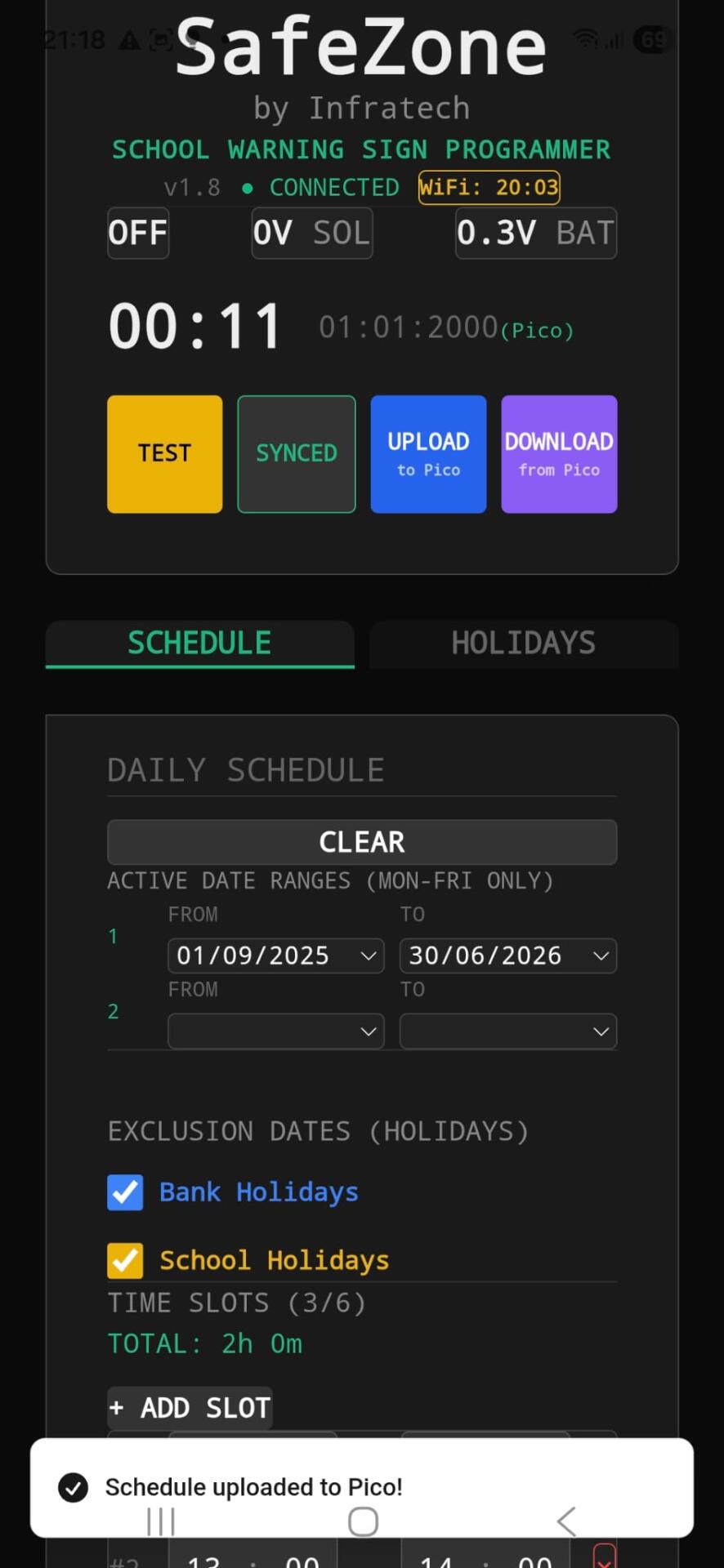
Tap + ADD SLOT to add each time period when the sign should flash. For example: 08:00–08:30 for morning drop-off and 14:00–14:30 for afternoon pick-up. You can add up to 6 slots.
Upload the schedule to the device
Tap UPLOAD to Pico. Wait a few seconds — you should see a confirmation message "Schedule uploaded to Pico!". The device is now programmed. You can disconnect from the WiFi.